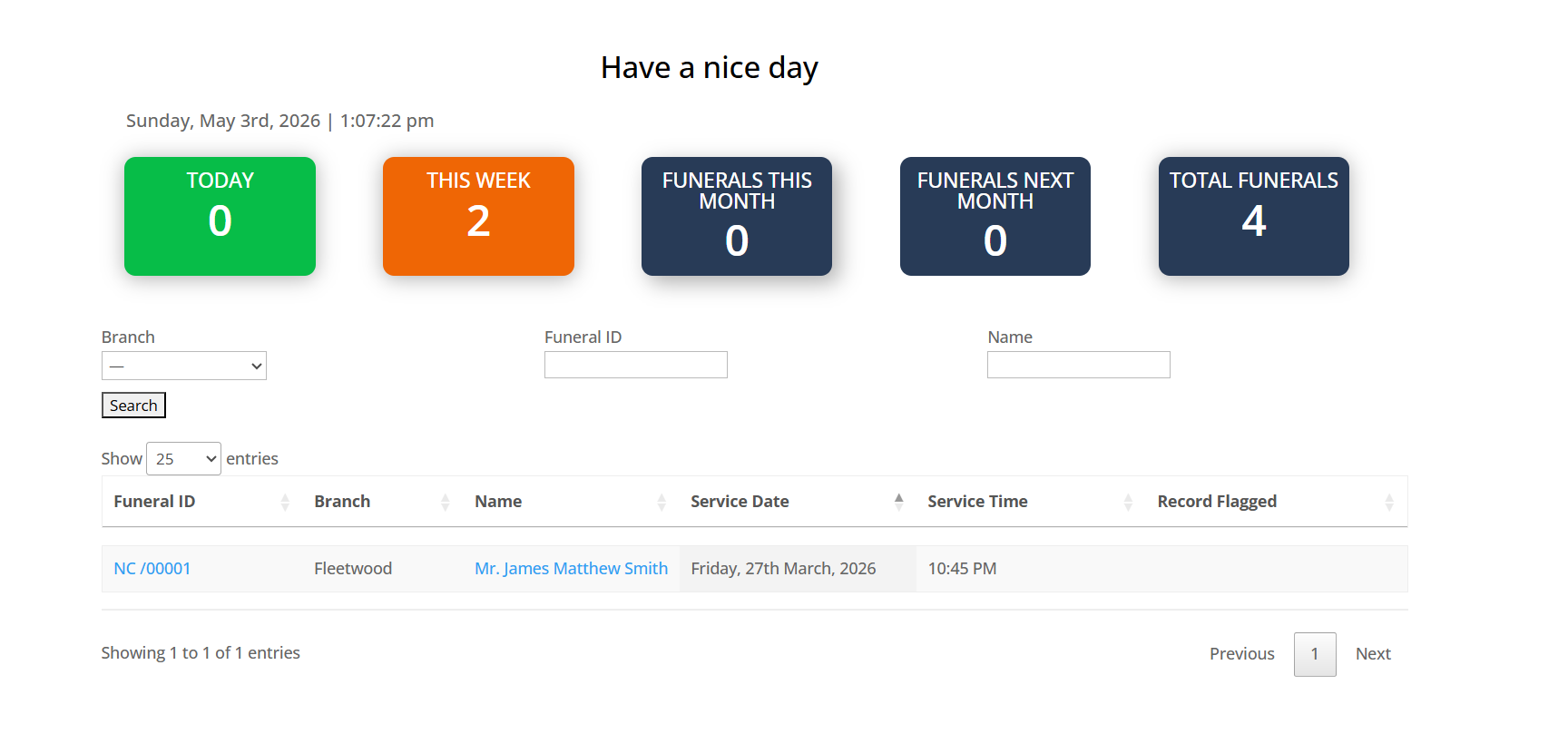
This is the MyFuneralManager Dashboard, the screen you will see everytime you log in to the Dashboard every morning.
You are greeted with a greeting and your name, please only log in using your username and password, everything you do in MyFuneralManager is tracked, any changes you make to a record or any additions so remember to log-out as you leave your desk. This will make MyFuneralManager Secure and help exclude data breaches of sensative client data.
The Current Full date and Time are displayed.
We then have 5 information box's
1. Today
This shows todays Funerals (Active from 12.01am to 11.59pm)
2.This Week
Displays any Funerals for this week
(Active Monday to Sunday)
3.Funerals This Month
Displays any Funerals for the current month
4.Funerals Next Month
Displays any Funerals for next month
4.Total Funerals
Displays the amount of Funerals that have been logged on MyFuneralManager since your go live date.
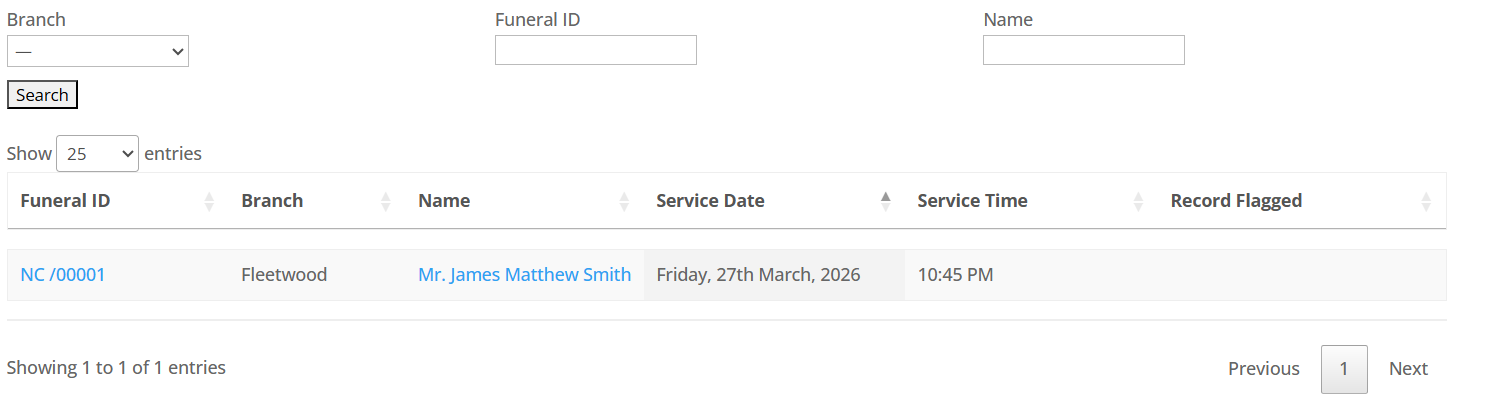
We have a section to search for Funeral Records, this can search for records from your go Live date to the current day.
1. Branch
You can filter records by Funeral Home Branch
2. Funeral ID
This will be the most used search field, EVERY Funeral will be given a unique ID it will be displayed on all documents that are produced by MYFuneralManager, you can get access to any record by typing in the Funeral ID.
3. Name
Search MyFuneralManager by deceased name this can be First name last or last name or full name, Please note if you type John in the Search field you will see all the Funerals where the deceased First Name is John.
The Funeral Table
Show....
Here you can change how many entries are displayed on the dashboard, it is set to a default of 25 but you can change this to suite your needs by clicking the drop down box.
We currently have the Main Funeral Manager table section,
Funeral ID, Branch, Name, Service Date, Service Time, Record Flagged
This section presents the essential details of the funeral, including the unique Funeral ID, the branch of the funeral home, the full name of the deceased, the date of the funeral, the service time, and whether the record is flagged. Both the Funeral ID and name are clickable, allowing you to edit that funeral record.
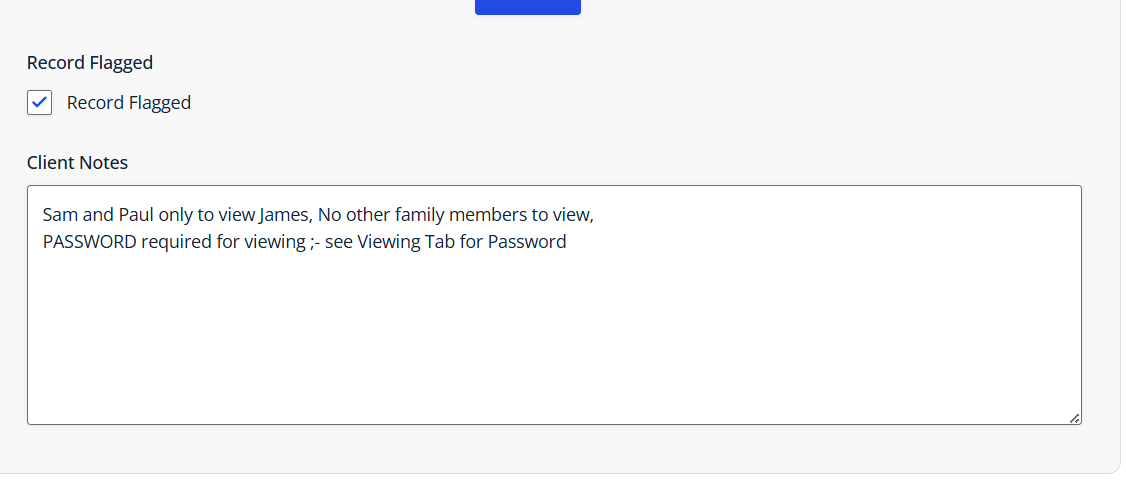
Record Flagged :-
We can quickly identify if the Record is flagged, which suggests that there might be information we need to review. Occasionally, information may be restricted to specific family members, or the Funeral may be private, and NO information is to be shared.